

A fast, stable Wi‑Fi connection isn’t a luxury anymore — it’s the backbone of modern life. From remote work and online classes to streaming, gaming, and smart home devices, everything depends on a strong wireless network. Yet many people still struggle with dead zones, buffering, and inconsistent speeds without realizing that a few simple adjustments can dramatically improve performance.
The good news? You don’t need to be a tech expert to optimize your Wi‑Fi. With the right strategies, you can boost speed, expand coverage, and create a smoother online experience for everyone in your home. Let’s walk through the most effective Wi‑Fi optimization tips you can start using today.
1. Place Your Router in the Right Spot
Router placement is one of the biggest factors in Wi‑Fi performance — and one of the most overlooked.
What to do:
- Position your router in a central, open location.
- Keep it off the floor and ideally on a shelf or table.
- Avoid placing it behind TVs, inside cabinets, or near thick walls.
- Keep it away from appliances like microwaves or cordless phones that can cause interference.
Why it matters:
Wi‑Fi signals spread outward like light from a lamp. If your router is shoved in a corner or hidden behind furniture, the signal weakens before it even reaches your devices.
2. Update Your Router’s Firmware
Just like your phone or computer, your router needs updates to stay secure and perform well.
Benefits of updating:
- Improved speed and stability
- Better security against cyber threats
- Enhanced compatibility with newer devices
Most modern routers update automatically, but older models may require manual updates through the router’s settings page. It’s worth checking — outdated firmware can slow everything down.
3. Use the Right Frequency Band: 2.4 GHz vs. 5 GHz
If your router is dual‑band, you have access to two different Wi‑Fi frequencies:
2.4 GHz
- Longer range
- Slower speeds
- More interference (because many devices use it)
5 GHz
- Faster speeds
- Shorter range
- Less interference
How to optimize:
- Connect devices that need speed (laptops, smart TVs, gaming consoles) to 5 GHz.
- Connect devices that need range (smart home sensors, older devices) to 2.4 GHz.
This simple change can instantly improve performance.
4. Reduce Wi‑Fi Interference
Your Wi‑Fi competes with more than you think. Baby monitors, Bluetooth devices, microwaves, and even your neighbor’s router can interfere with your signal.
Ways to reduce interference:
- Keep your router away from electronics that emit radio waves.
- Change your Wi‑Fi channel in the router settings to avoid crowded frequencies.
- Use 5 GHz when possible — it has more available channels and less congestion.
5. Upgrade Your Router If It’s Old
If your router is more than five years old, it may not support modern Wi‑Fi standards or speeds.
Signs you need an upgrade:
- Frequent disconnects
- Slow speeds even after troubleshooting
- Limited range
- Devices struggle to stay connected
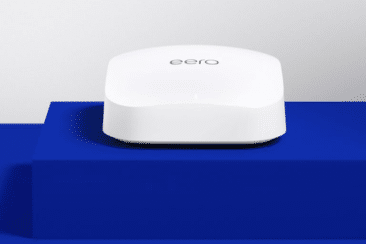
Look for routers that support Wi‑Fi 6 like our eero Pro 6E for the best performance and future‑proofing.
6. Secure Your Network
A slow network isn’t always a technical issue — sometimes it’s a security issue. If your Wi‑Fi isn’t password‑protected, neighbors or nearby devices could be using your bandwidth.
Best practices:
- Use a strong password with a mix of letters, numbers, and symbols.
- Enable WPA3 security if your router supports it.
- Change your default network name (SSID) to something unique but not personally identifying.
A secure network is a faster network.
7. Restart Your Router Regularly
It sounds simple, but it works. Routers can get bogged down over time, especially with many connected devices.
Try this:
- Restart your router once every week or two.
- Unplug it for 10–15 seconds before plugging it back in.
Some routers even allow scheduled reboots — a handy set‑and‑forget option.
8. Use Ethernet for High‑Demand Devices
Wi‑Fi is convenient, but wired connections are still king for speed and stability.
Use Ethernet for:
- Gaming consoles
- Desktop computers
- Smart TVs
- Streaming devices

This frees up wireless bandwidth for everything else and ensures your most demanding devices get the fastest connection possible.
9. Add a Wi‑Fi Extender or Mesh System
If you live in a larger home or have thick walls, even the best router may struggle to cover every corner.
Two options:
Wi‑Fi Extenders
- Affordable
- Boost signal to specific areas
- Best for small coverage gaps
Mesh Wi‑Fi Systems
- Multiple nodes that blanket your home in coverage
- Seamless roaming from room to room
- Ideal for multi‑story homes or large spaces
Mesh systems are more expensive but offer the most reliable whole‑home coverage.
10. Check Your Internet Plan
If you’ve optimized everything and still struggle with slow speeds, your Internet plan may simply not match your household’s needs.
Consider upgrading if:
- You work from home
- You have multiple streamers or gamers
- You use many smart home devices
- Your household has 4+ people online at once
Sometimes the bottleneck isn’t your Wi‑Fi — it’s your service tier.

Fast, Reliable Fiber Internet for Your Home
Optimizing your Wi‑Fi doesn’t have to be complicated. Small changes like moving your router, updating firmware, or switching frequency bands can make a noticeable difference. For larger homes or heavier usage, upgrading equipment or adding mesh coverage can transform your network entirely.
A strong Wi‑Fi connection keeps your home running smoothly — and with these tips, you’ll be well on your way to faster speeds, fewer interruptions, and a better online experience for everyone.